 moonshot
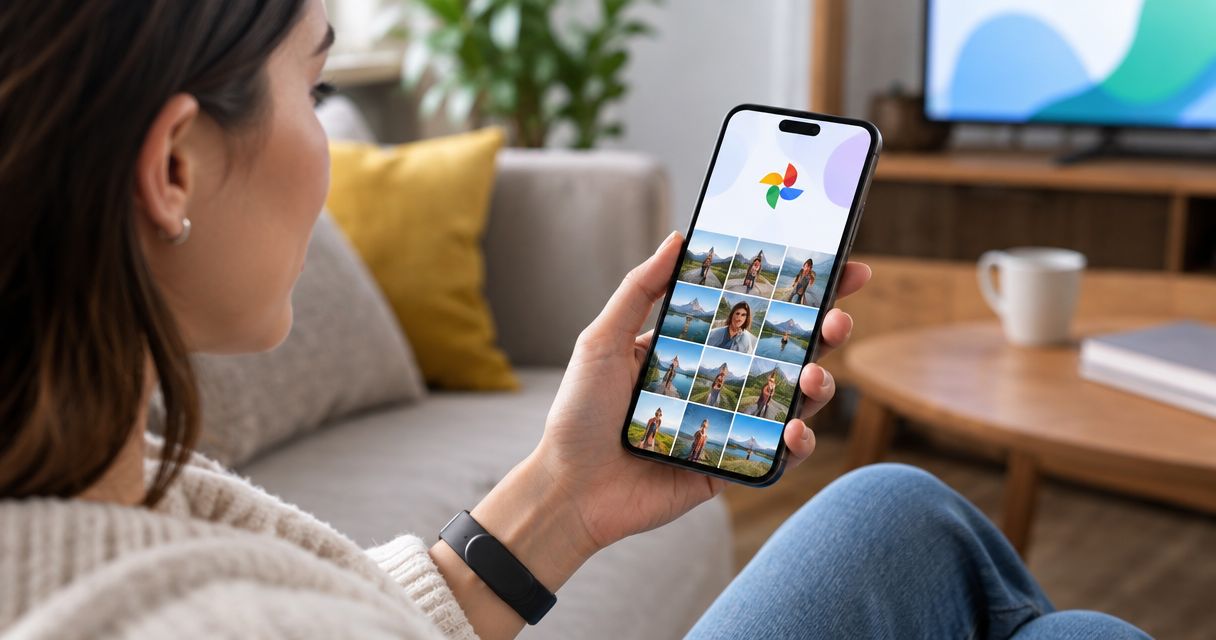
A captured moment is only useful if you can find it again. This guide covers how to get what Moonshot captures into the photo library you already open every day, with your yes on each item, in 2026.
- Moonshot captures a moment; you decide which ones move into your photo library. Nothing is sent without your yes.
- Set up the destination first, then approve moments one at a time for the first week.
- Check the live preorder page in 2026 for what the wearable connects to at launch before you plan around it.
- If a moment does not arrive, the cause is almost always the photo app's backup setting, not the capture.
Why this matters
You catch something at the farmers market: a handwritten sign, a stall you want to find again. Two days later it is gone from your head. A wearable that hears you out and holds the moment only helps if the moment lands somewhere you already look.
Your photo library is that place. It is searchable, it is on your phone, and it is where you go when you think "where was that?"
The verdict for 2026: keep the library as the single home for moments you want to keep, and treat Moonshot as the way they get there. Moonshot is best for people who want fewer apps, not one more feed to check.
One boundary up front. A captured moment is something you recorded with the wearable. It is not a public source, and it is not a fact about the world. Treat it as your own note, and keep it under your own control.
Before you start
- A photo library account you already use. Sign in on your phone first. Backup must be switched on in that app, or nothing you send will sync to your other devices.
- Your preorder confirmation. Moonshot is a preorder product in 2026. Launch copy promises week one only, so plan the first week and nothing beyond it.
- The gotcha: each source is granted separately. Giving Moonshot access to one place does not give it access to another. If a step asks for permission you did not expect, stop and read what it is for before you approve.
Check the live preorder page the day you set this up. It is the only source for what ships and what connects at launch. Do not rely on a screenshot, a forum post or this guide for a spec.
Set up your destination
- Open your photo app on your phone.
- Open its backup or sync setting and confirm it is on.
- Pick the folder or album where you want captured moments to land. Name it something you will remember, such as Moonshot moments.
Expected result: a named, empty album that is backing up. You can see it on your phone and on any other device signed in to the same account.
Connect Moonshot to that destination
- Open the Moonshot setup flow once your wearable arrives.
- Find the section for where captured moments go. Choose your photo library only if the setup offers it.
- Approve the access when prompted. Grant it for this one purpose.
- Send one test moment. Say it once, out loud, the way you would to a friend: a short note about something in front of you.
Expected result: the test moment shows up in your named album after the next sync. If the setup does not offer a photo library connection on the day you read this, skip to the manual route below. Do not assume a connection exists because this guide describes one.
Approve each moment
Nothing goes out in your name without your yes. That holds here too.
- For the first week, approve every moment before it moves.
- Decline anything you would not want sitting in a library other people might see on a shared screen.
- After week one, decide whether per-moment approval still suits you. That is your call, not a default.
Expected result: a short list of moments you chose, not a dump of everything the day produced.
The manual route
If there is no direct connection on launch day, the library still works.
- Open the moment in Moonshot.
- Save it to your phone using the share or export option the app shows.
- Let your photo app's backup pick it up from the phone, or drop it into the album you named.
It takes three taps instead of none. It also gives you a natural pause to decide if the moment is worth keeping.
Variant: save only the moments you flag
Most people do not want every moment in their library. Set it up so only flagged moments move.
- Decide your flag. One word works: keep.
- Say it once after a moment you want to hold on to.
- Approve only flagged moments when Moonshot asks.
Expected result: your album stays small. A library of twenty moments you chose beats a library of two thousand you will never open.
Troubleshooting
- The test moment never shows up. Open your photo app and check that backup is on. Then check you are looking in the named album, not the main grid.
- It arrives on your phone but not on your laptop. Both devices need to be signed in to the same account. Sync can take a few minutes on a weak connection.
- Moonshot asks for access you did not expect. Decline it. Return to the setup section, read what the access is for, and grant it only if the purpose matches what you want.
- A moment is in the library that you did not approve. Delete it from the library, then review which access you granted and revoke any you do not need.
- The album is cluttered after week one. Tighten your flag. Move to flagged-only and clear what you will not reopen.
Customize your workflow
Once the basic route works, shape it around how you use what you keep.
- One album per theme. Places to go back to, ideas you keep raising, people you mean to call. Each album is one payoff, like the call you finally made.
- A weekly look. Open the album once a week and pick the next step for one moment. Moonshot hears you out; the follow-through is yours.
- A cleanup rule. Delete anything in the album you have not opened in a month.
For what Moonshot is and what the preorder covers, start at the Moonshot preorder page.
See what ships in week one
The live preorder page is the source for what Moonshot does at launch.
FAQ
Can you save wearable moments to a photo library?
Yes, through a direct connection if your wearable offers one, or by saving the moment to your phone and letting backup pick it up. Check the live preorder page for what Moonshot connects to at launch.
Does Moonshot send moments without asking?
No. Nothing goes out in your name without your yes. You approve each moment, and you grant each source separately.
What counts as a captured moment?
A captured moment is something you recorded with the wearable. It is your own note, not a public source and not a verified fact about the world.
Why did my test moment not sync?
Backup is the usual cause. Confirm backup is on in your photo app and that you are looking in the named album.
Should I save every moment?
No. Save the ones you flag. A small album you reopen is more useful than a large one you never look at.
How long should I keep per-moment approval on?
Keep it on for week one. After that, decide whether it still suits you. The choice is yours.
Does Moonshot make calls or move money?
No. It hears you out, asks a good question back, and turns one thing into a next step with your yes on each one.
One last thing
The best test of this setup is not the first moment you save. It is the first moment you go looking for three weeks later and find in under a minute. Name your album today, before the wearable arrives, so the first moment has somewhere to land.