 moonshot
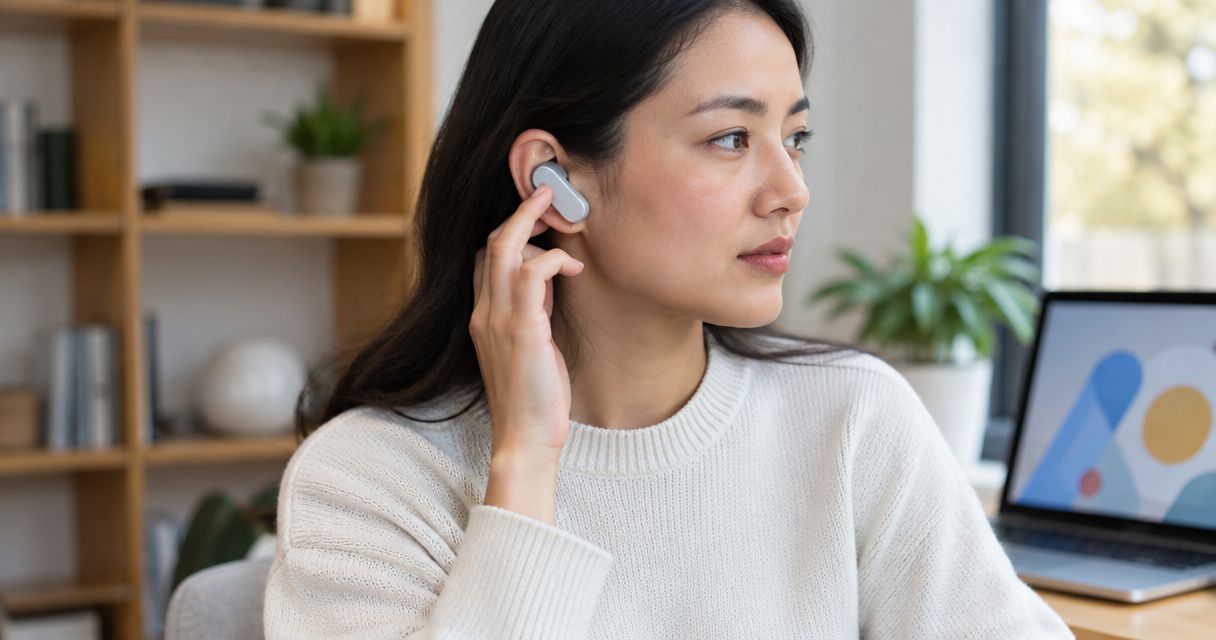
To stop an AI wearable from recording, use the device’s documented recording-stop, microphone-mute, or power-off control, then check the documented status indicator. Stopping new capture does not delete saved recordings or necessarily stop an upload already in progress, so check those separately.
- How do I stop an AI wearable from recording? Use its documented stop control and verify the recording status.
- Stopping capture, stopping uploads, and deleting saved audio are separate tasks.
- Moonshot hears you out; check its current documentation rather than assuming a particular microphone control.
- For a private conversation, keep the wearable powered off and elsewhere when you cannot confirm its recording state.
Recording controls
A private conversation is about to start. You press a button on your wearable, but the question remains: did that stop recording, silence a notification, or close an interaction? A button press is not confirmation unless the manufacturer documents what it does.
For a device you use in 2026, start with instructions that match its current hardware and software. The wearable privacy features guide provides a separate place to consider privacy controls when choosing a device; the instructions for your exact model remain the reference for stopping it.
How do I stop an AI wearable from recording?
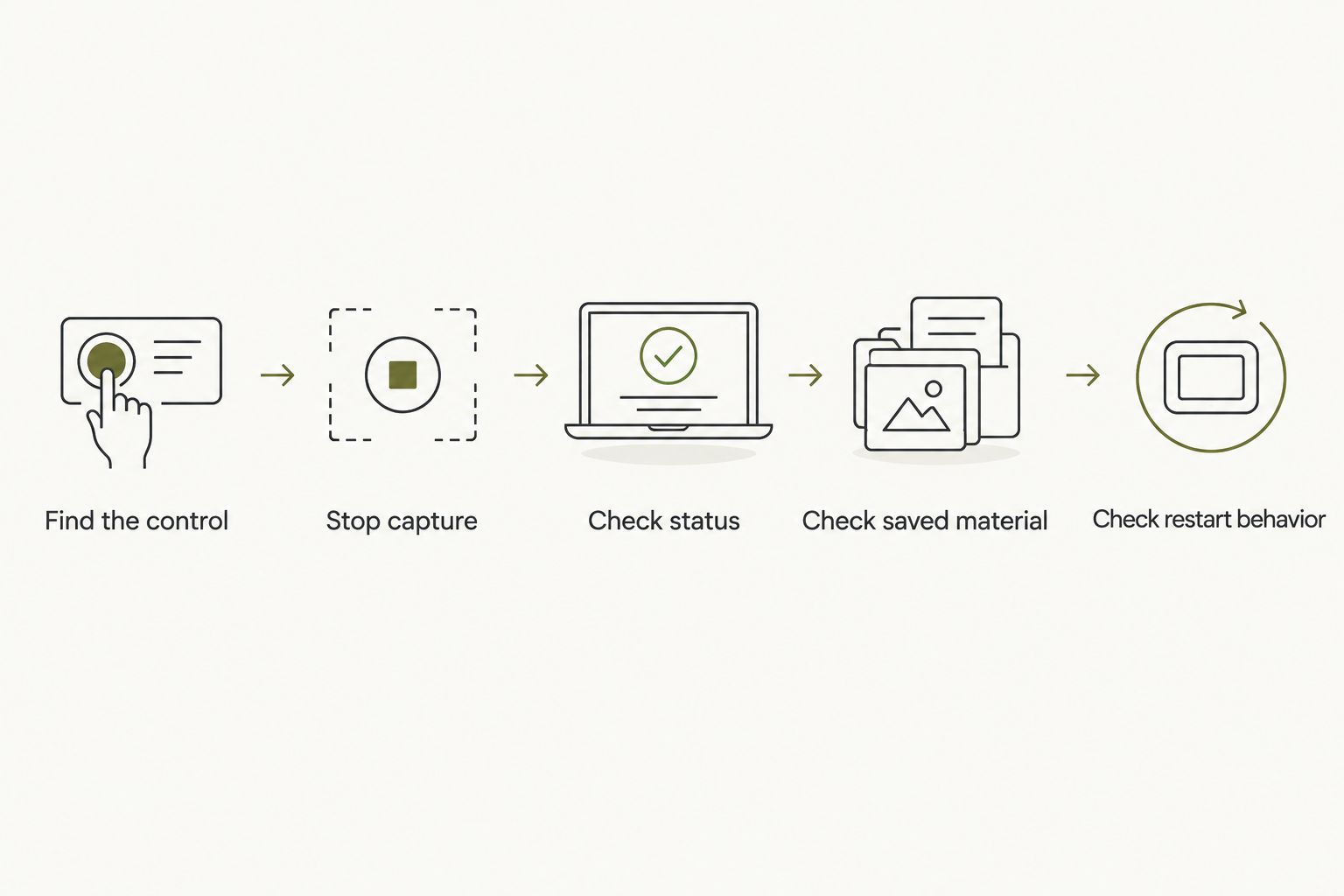
Use the following sequence to stop capture and check what happened. These are verification steps, not a claim that every wearable has the same controls.
1. Find the control
Look in the device’s instructions for recording, microphone, mute, pause, and power-off. Read what the control stops, how to activate it, and how the device confirms the change.
Do not guess from a microphone symbol alone. Establish whether the control stops the wearable’s microphone, a recording session, or only a feature in the connected app.
2. Stop capture
Use the documented control before the private conversation begins. If the instructions distinguish pausing from ending a session, choose the action that matches what you need.
When you cannot identify a recording-stop control, use the documented shutdown process. Do not substitute closing the app, removing the wearable, or disconnecting your phone unless the instructions explicitly say that action stops capture.
3. Check status
Check the indicator that the instructions identify as confirmation. That might be a device indicator or an app status, depending on the model; do not assume a particular light, sound, or message means recording has stopped.
Read any warning about what the indicator represents. A connection indicator answers a different question from a microphone-status indicator.
4. Check saved material
Open the recording history if the device provides one. Identify the last captured item and decide whether you also want to delete it.
Do not treat an empty history as proof that no capture occurred. A history view only establishes what that view displays, and processing or synchronization can be separate from capture.
5. Check restart behavior
Before wearing the device again, check what restarts recording. Look for documented behavior after a restart, reconnection, or a new recording session.
Repeat this check after a relevant software update in 2026. A remembered gesture is not a substitute for instructions that match the version you are using.
Recording-stop options
Choose a control by what its documentation says it stops, not by how reassuring its name sounds. This table compares actions you can check for; it does not imply that your wearable provides all of them.
| Action | Best for | Useful when | Limit to check |
|---|---|---|---|
| End recording | Ending a particular session | The instructions identify a session-stop control | Whether another session can start automatically |
| Microphone mute | A temporary recording break | The manufacturer explicitly says mute stops microphone capture | Whether mute persists after restart or reconnection |
| Power off | Taking the wearable out of use | You can confirm shutdown through the documented process | Saved material and remote processing remain separate questions |
| Revoke phone microphone permission | Stopping an app from using the phone microphone | The recording source is the phone microphone | Whether the wearable has its own microphone and capture process |
| Disconnect a network connection | Interrupting a particular transfer route | The documentation explains which connection carries the transfer | Whether capture continues locally or another connection exists |
| Delete saved material | Removing an earlier recording | You have identified the relevant recording and deletion process | Deletion does not itself stop future capture |
For stopping recording, choose a capture control—not a connection setting. Disconnecting a device answers a connectivity question unless the manufacturer explicitly documents a recording consequence.
Powering off also has a practical trade-off: you cannot use the wearable while it is off. A documented microphone mute can suit a temporary break, but only when you understand its scope and can verify its state.
Why recording controls differ
The right procedure depends on which part of the recording process you want to stop. Check these factors in the current instructions rather than assuming a shared design across wearables:
- Capture source. Establish whether sound comes from the wearable, the phone, or another source you have separately permitted.
- Control scope. Find out whether an action ends a session, stops microphone capture, interrupts transfer, or deletes stored material.
- Status meaning. Confirm whether the indicator describes recording, connection, processing, or another device state.
- Saved copies. Check where the documentation says recordings and derived material are held, and which deletion controls address them.
- Restart rules. Check whether recording remains stopped after shutdown, reconnection, or a software change.
These distinctions matter when reviewing a wearable in 2026. A clear recording-stop control answers the immediate question; clear storage and restart instructions answer what happens afterward.
Capture, transfer, and deletion
Think of recording as a sequence of separate events, not a single switch. Sound can be captured, material can be transferred, and saved material can remain until a separate deletion action addresses it.
For your device, establish which of those events actually occurs and which controls apply. Do not infer its storage design from another product’s instructions.
New capture
Your immediate goal is to stop collecting new sound. Find the control explicitly described as ending recording or disabling microphone capture, and use its documented confirmation.
If you cannot confirm that state before a sensitive conversation, keep the device powered off and outside the conversation space. Removing it from your clothing alone does not establish that it has stopped.
Transfer and processing
Your next question is whether previously captured material is still being transferred or processed. Check the device and account instructions for those operations separately.
Turning off a wearable does not establish what has happened to material already sent elsewhere. Likewise, a network disconnection does not establish whether the wearable continues capturing sound locally.
Saved material
Deletion is a separate decision. Check whether the available deletion action addresses the original recording, a transcript, a summary, or other saved material.
Do not assume that deleting one visible item removes every related item. Read the stated scope of the deletion process and any retention explanation before treating it as complete.
A recording-stop check
You can practice the documented stop procedure before you need it in a private setting. Use harmless words rather than a personal conversation, and keep the test limited to material you are comfortable capturing.
- Read the instructions. Identify the recording control and its confirmation before starting.
- Record a test phrase. If your device supports a user-started recording session, capture a short, non-sensitive phrase.
- Use the stop control. Follow the documented action and check the stated indicator.
- Review the result. Check the available recording history and compare it with the documented behavior.
- Check the next session. Establish what you must deliberately do to start recording again.
This exercise helps you learn the controls. It is not proof that a device cannot capture sound in another state. An absent recording in a history view does not establish everything about storage or processing.
Keep a short note of the control you verified and the instructions you used in 2026. Recheck it when the device’s behavior or software changes, rather than relying on an old habit.
Does closing the app stop a wearable from recording?
Closing the app is not a recording-stop procedure unless the manufacturer explicitly documents it as one. The app interface and the wearable’s capture process are different things to verify.
Check the instructions for the physical device as well as the app. The same caution applies to locking your phone, turning its screen off, or removing the wearable: none should be treated as a verified stop command without documentation.
Does turning off recording delete earlier conversations?
Turning off recording does not itself establish that earlier conversations have been deleted. Use the separate deletion procedure for the material you want removed.
Check the scope before confirming deletion. If you need an answer about a saved recording or related text, ask specifically about that material rather than asking only whether the microphone is off.
Moonshot and recording questions
Moonshot is best suited to people who want a wearable that hears them out and asks a good question back. Its stated purpose is to help you learn from your own life—not to choose your priorities for you.
Picture mentioning the same unfinished idea again. The useful outcome is a chance to talk it through and choose the next step, not a claim that the device knows what you meant. Your yes and your follow-through remain yours to give.
For Moonshot, check the reservation page for current product information. In 2026, separate what is currently available from what is planned, especially when evaluating recording controls.
Before choosing Moonshot, ask for the exact stop procedure, its confirmation, and the deletion process. A description of the benefit does not establish those technical details, and a good fit still depends on whether you can verify the controls you need.
FAQ
How do I know my wearable has stopped recording?
Use the confirmation identified in the manufacturer’s instructions for your exact model. Do not treat a connection light, an empty history, or a closed app as recording confirmation unless the documentation says it is.
Can I stop recording without turning the wearable off?
Use a recording-stop or microphone-mute control if your device documents one. Check what it stops and whether the stopped state persists after reconnection or restart.
Does turning off Bluetooth stop a wearable from recording?
Turning off Bluetooth is not a verified recording-stop action unless the manufacturer explicitly documents it as one. Check microphone capture and transfer behavior separately.
Does removing microphone permission stop the wearable itself?
Removing a phone app’s microphone permission addresses that app’s access to the phone microphone. Check the wearable’s own recording instructions separately rather than assuming the permission controls both devices.
How do I stop recording before a private conversation?
Use the documented stop or shutdown procedure before the conversation starts and verify its confirmation. If you cannot confirm the recording state, keep the device powered off and elsewhere.
Will deleting a recording stop new recordings?
Deleting a recording is not a procedure for stopping new capture. Stop recording first, then use the documented deletion process for saved material.
What should I ask before choosing a wearable in 2026?
Ask how to stop recording, how to verify that state, and what restarts capture. Separately ask how saved recordings and related material are deleted.
The next step
Practice stopping the device before the conversation that matters. The useful result is simple: you know the control, recognize its confirmation, and understand what remains saved.
If you cannot verify that recording has stopped, do not use the private conversation as the test. Power the device off through its documented procedure and leave it elsewhere.